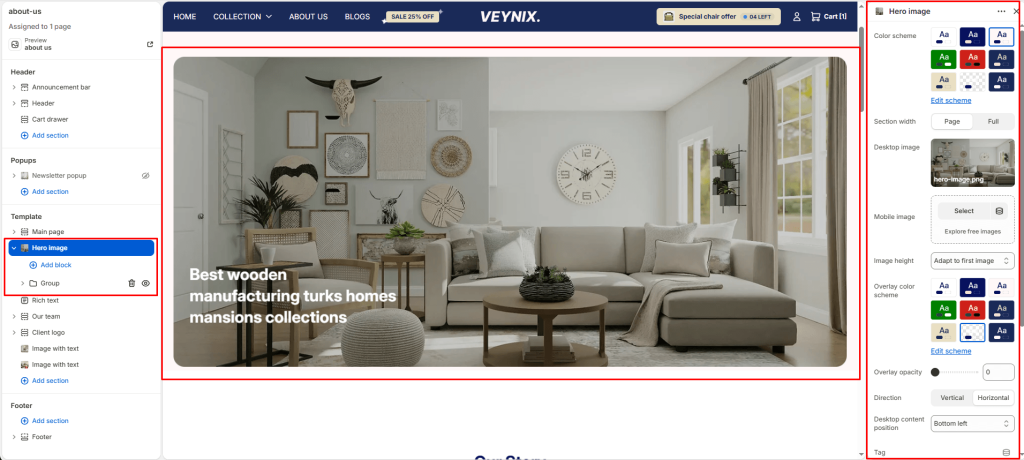
The Hero Image section is a full-width introductory banner combining a large image with heading, subheading, and button content — used to make a strong first impression at the top of a page.
Section Settings #
Color scheme #
Choose a predefined color scheme to control the section’s background, text, and accent colors, keeping it consistent with the rest of the theme design.
Section width #
Control how wide the section appears on the page.
Options:
- Page
- Full
Desktop image #
Upload a high-quality image optimized for larger screens.
Mobile image #
Optionally upload a separate image optimized for mobile devices to ensure visual clarity and proper scaling on smaller screens.
Image height #
Choose one of the available options from the dropdown.
Options:
- Adapt to first image
- Small
- Medium
- Large
- Full screen
Overlay color scheme #
Choose a color scheme to use for the overlay layer that sits on top of the background image or video.
Overlay opacity #
Adjust the transparency of the overlay layer on top of the background media. Increasing this improves text readability and contrast against busy images.
Direction #
Choose how the content elements are arranged.
Options:
- Vertical
- Horizontal
Desktop content position #
Defines where the overlay content is anchored within the section on desktop screens.
Options:
- Top left
- Top center
- Top right
- Middle left
- Middle center
- Middle right
- Bottom left
- Bottom center
- Bottom right
Tag #
Enter the text content to display.
Tagline #
Enter the text content to display.
Top padding #
Add vertical spacing above the section content for better layout balance with the section above it.
Bottom padding #
Add vertical spacing below the section content for better layout balance with the section below it.