
Skip to content
Villyit
Villyit
  • Contact
  • Theme Support

getting Starting

1
  • Getting Started

general settings

12
  • Additional Features
  • Cart
  • Product
  • Search
  • Badges
  • Currency codes
  • Social Media
  • Layout
  • Typography
  • Colors
  • Breadcrumbs
  • Logo

header

3
  • Cart drawer
  • Header
  • Announcement bar

sections

34
  • Gallery
  • Logo List
  • Scrolling text
  • Testimonials
  • Image card
  • Video
  • Image Zigzag
  • Video Testimonials
  • Media grid
  • Highlight testimonial
  • Product bundle
  • Visual story
  • Highlight text with image
  • Steps
  • Slideshow
  • Shop the look
  • Rich Text
  • Our team
  • Newsletter
  • Multicolumn
  • Image with Text
  • Image gallery
  • Hero image
  • Hero floating showcase
  • Features with images
  • Featured Collection
  • FAQ
  • Contact Form
  • Collection highlights
  • client logo
  • Category showcase
  • Cart drawer
  • before after image
  • Banner

footer

1
  • Footer

blogs and articles

4
  • Related Post
  • Main Blog
  • Blog Post
  • Article

collections

4
  • Main Collection List
  • Main Collection Banner
  • Main Collection
  • Collection List

product

5
  • Related Products
  • Recently viewed products
  • Featured product
  • Product recommendations
  • Main Product

blocks

15
  • Blocks
  • Heading
  • Text
  • Subheading
  • Slide
  • Rich text
  • Rating
  • Product block
  • Buttons
  • Image
  • Group
  • Countdown
  • Column
  • Circular text badge
  • Breadcrumbs

Popups

1
  • Newsletter Popup
View Categories
  • Home
  • Helpdesk
  • Veynix
  • sections
  • Product bundle

Product bundle

1 min read

The Product bundle section (often titled “Frequently Bought Together”) displays a collection of complementary products alongside a focused call-to-action card. This layout is perfect for interior design sets, tool kits, or matching tile collections.

Color scheme #

Choose a predefined color palette to match the section with your store’s theme style.

Section Width #

  • Page: Constrains the content to the theme’s maximum site width.
  • Full: Stretches the section to the edges of the browser window.

Heading #

Add the main promotional title.

Heading size #

Adjust the scale of the heading from H1 to H6 to establish visual hierarchy.

Text Align #

Set the alignment of the text and button to left, center, or right.

Description #

Enter a detailed paragraph to provide more context about the promotion or offer.

Text size #

Control the font size of the description paragraph for better readability.

Button label #

Input the text for the action button (e.g., “CHECK NOW”).

Button link #

Select the destination page, product, or collection the button should lead to.

Button style #

Choose between available button styles. The styles depend on your theme’s design system.

  • Button icon
  • Primary button
  • Secondary button
  • Full button
  • Link button
  • Button with icon

Image #

Upload a right-side image.

Top/Bottom Padding #

Adjust the vertical spacing (in pixels) to give the section room to breathe.
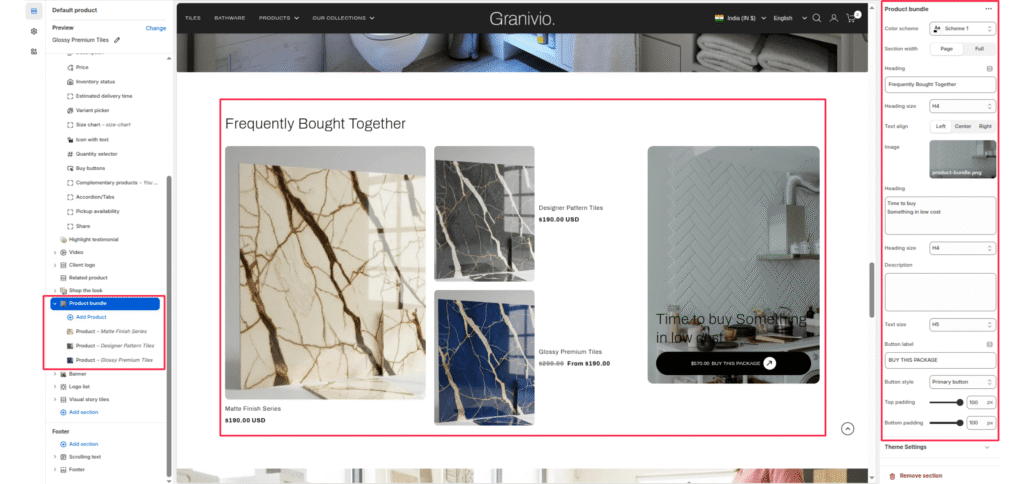
Blocks (Products) #

You can add individual products to the bundle by adding Product blocks in the left-hand sidebar.

Add Product #

Click “Add Product” to select a specific item from your store catalog.

Updated on July 3, 2026

What are your Feelings

  • Happy
  • Normal
  • Sad
Share This Article :
  • Facebook
  • X
  • LinkedIn
  • Pinterest

Leave a Reply Cancel reply

Your email address will not be published. Required fields are marked *

Table of Contents
  • Color scheme
  • Section Width
  • Heading
  • Heading size
  • Text Align
  • Description
  • Text size
  • Button label
  • Button link
  • Button style
  • Image
  • Top/Bottom Padding
  • Blocks (Products)
  • Add Product
© 2025 Villyit . All Rights Reserved.